POS9

POS9 / Customer account

150 ₺ + VAT / month

Let your customers see their own account

The “My account” button below the loyalty card takes members to their own page: points, tier, all purchases, and receipts. Your logo sits at the top of the page, and it looks great on both phone and desktop.

Passwordless sign-in

Customers sign in with a 6-digit code sent to the email on their customer card; if the WhatsApp Business module is active, they can also sign in with their phone number and a WhatsApp code. The session stays open on that phone for 30 days.

Points and tier

Points balance shown in large text, with the current level (Bronze, Gold, Platinum, etc.) and a progress bar showing how many visits remain until the next level. Levels are set up in the Segmentation module.

Complete purchase history

Which day, at which branch, what they bought, and how much they paid. Tap a row to expand the items; refunded items are clearly marked.

Digital receipts

Each purchase receipt opens on its own page, ready to print or save as a PDF. Once e-Arşiv integration is connected, the invoice PDF also appears in the same place as “Download invoice.”

Points activity

Every point earned and spent, with its date and remaining balance. Members can answer “Why did my points drop?” on their own.

Favorites

Their most-purchased products, ranked, with how many times each was bought. Also visit count, total and average spend, and when they became a member.

Customers update their own details

Members can update their name, phone number, email, and marketing consent. Email changes are confirmed with a code sent to the new address, so no one can take over the card and change the email.

Profile picture

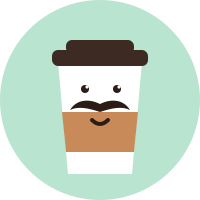
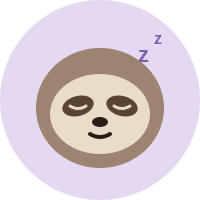
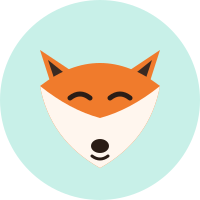
Use your own photo or pick one of twelve fun avatars. Photos are resized on our servers and location details are removed. If an inappropriate image is uploaded, you can remove it from the panel.

Your logo, your colors

Your business logo at the top of the page, with your brand color on the loyalty card. Your menu and Instagram account are just one tap away.

Also accessible from your wallet card

A “My Account” link appears on the back of your Apple Wallet and Google Wallet card.

One-tap sign-up at the kiosk

Before payment, the kiosk asks, “Join and earn points on this order.” The customer enters their name and phone number, and their card's QR code appears on screen. They scan it and save it to their phone.

Respect for your personal data

The account opens only for the owner of the card and email. Codes are valid for 10 minutes, and up to 5 codes can be requested per hour.

How do customers access their account?

No app to download, no password to remember. The account opens only for the owner of the card and email.

  1. “My Account” from your card

    Tap the button below your digital card, or the link on the back of your wallet card.

  2. Enter your email

    A 6-digit code is sent to the email address registered on the card. No code is sent to unregistered addresses.

  3. Enter the code

    The page opens and stays signed in on that phone for 30 days. Customers can sign out at any time.

  4. Everything in one place

    Points, level, purchases, receipts and favorites. They can also update their details and photo here.

A digital receipt for every purchase

Tap any purchase to open its receipt: branch, time, items, options, VAT, the part paid with points, and points earned. Print it or save it as a PDF, so there's no need to hunt for paper receipts for expense claims.

  • Branch, date and receipt number
  • Items, options and discounts
  • VAT, total and payment method
  • Points used and earned
  • Print or save as PDF

Your own photo or a funny avatar

Customers choose their own profile picture: they can upload their own photo or pick one of twelve fun avatars. When they scan their card at the self-order kiosk or enter their phone number, the screen greets them with their picture.

  • Twelve ready-made avatars, from a coffee bean to a San Sebastian slice
  • Your own photo: take one with your phone or choose one from your gallery
  • Shown on the kiosk's “Welcome” screen and in the top bar
  • You can remove an inappropriate picture from the panel
  • Cool Bean
  • Mustached Cup
  • Croissant
  • Barista Cat
  • Sleepyhead
  • Surprised Donut
  • Night Owl
  • Bitten Cookie
  • Extra Espresso
  • Pug
  • Clever Fox
  • San Sebastian

See it through your customer's eyes

When you open a customer in the panel and click “Open My Account,” their page opens in a new tab without any code. Resolve a complaint or points question on the phone by looking at the same screen as your customer.

Questions

If anything else is on your mind, get in touch with us.

What information is required when signing up?

Only full name and mobile phone number are needed. The card is activated right away and added to the customer's phone wallet. We don't ask for email or birthday; if customers wish, they can add them later under Update my details in My Account. At the kiosk, these same two details are requested when signing up before payment.

How does the birthday gift work?

Members enter their birthday under My Account (day and month; year is optional). On the morning of their birthday, a points amount you set is loaded onto their card, for example the price of a coffee, or a free coffee on a stamp card. A “Happy Birthday” message is sent to their card and the card in their wallet. If WhatsApp is connected and the member has opted in to campaigns, they're celebrated there too. Points can be used right away at the register, at the kiosk, and for online orders.

The birthday gift is given once a year. If the birthday was entered within the last 30 days, no gift is given that year, so someone who signs up and enters today's date can't claim it right away. Members enter their birthday once. If they want to change it, the business can update it from the panel.

What exactly is the customer account module for?

Your loyalty member opens their own page and sees, without having to ask you: their points and tier, all their purchases (branch, date, items, amount), a digital receipt for each purchase, a detailed history of points earned and spent, and their most-purchased products. They update their name, phone number, email, campaign consent, and profile photo themselves.

The answers to “why do I have this many points?”, “what did I buy yesterday?”, and “I lost my receipt” are right on the customer's phone, so the till doesn't have to answer them.

Where does the customer find the My Account page?

In three places: the My Account button on the loyalty card page on their phone, the My Account link on the back of their Apple Wallet or Google Wallet card, and directly at the card's address. No app download is needed; the page opens in the browser.

How does a customer sign in, and is a password required?

There is no password. The customer enters the email address on their customer card and then the 6-digit code they receive. If the WhatsApp Business module is active, they can enter their phone number instead of email and get the code via WhatsApp.

The code is valid for 10 minutes, and up to 5 codes can be requested per hour for one number or email. The sign-in stays open for 30 days on that phone or computer; “Sign out” ends it immediately.

What should a customer do if their card has no email?

If the WhatsApp module is enabled, they sign in with their phone number. If not, they first add their email under Update my details on their card. The address is verified with a code, and then they sign in to My Account using that address.

What should I do if the customer isn't receiving the code?

First, ask them to check the spam and promotions folders, as the code can sometimes take a minute or two to arrive. Make sure the address they entered matches the one on their card. If they hit the limit of 5 codes per hour, they can try again in an hour. If WhatsApp is connected, they can also try signing in with their phone.

In the meantime, you can open the customer in the panel and click Open My Account to view their page and answer their questions from there.

As a business owner, can I see my customer's screen?

Yes. In the panel, go to Customers, open the customer, and click Open My Account. The page the customer sees will open in your browser with a 12-hour session. You don't need the customer's password or code, and there is no master password. The button appears for users who have customer access.

What purchases appear in My Account?

All sales where the customer scanned their card or was matched by phone number, including the register, kiosk, and browser checkout. Purchases made without a card don't appear, since there's no way to know whose they are. Each line shows the branch, date, amount, and points earned. Tap a line to see the products, options, and discounts. Refunded sales are clearly marked.

Does the digital receipt replace an official document?

No. The receipt in My Account is for information only. It shows the branch, date, receipt number, products, VAT, total, payment method, and points activity. It can be printed or saved as a PDF. Once the e-Archive integration is connected, the invoice PDF will also appear there as “Download invoice.”

What is shown in the points history?

Each line is a transaction: how many points were earned from a purchase, where points were spent, points you added or deducted manually along with their notes, and points reversed due to refunds. Each line also shows the balance after the transaction, so customers can see step by step how their balance was built.

Where do the level (Bronze, Gold) and the progress bar come from?

Levels come from the spending or visit thresholds you set in the Segmentation module. My Account shows the member's current level and how many more visits (or how much more spending, if you chose spending) they need to reach the next one. Total spending is not shown to the member; it is only visible in the dashboard. If Segmentation is turned off, the level section is hidden and everything else keeps working.

What profile photo can a customer choose?

Either one of twelve ready-made avatars (such as a coffee bean, a barista cat, a sleepy sloth, or a slice of San Sebastian cheesecake) or their own photo. Photos can be taken with the phone camera or chosen from the gallery. The image is cropped to a square, resized, and stored with hidden information (EXIF), such as location, removed.

The photo appears on the kiosk's “Welcome” screen, in the top bar, and on the customer card in the panel. To remove an inappropriate photo, click Remove photo in the panel.

How does sign-up work on the kiosk?

Before payment, on the screen where the name is written on the cup, the kiosk shows the option “Sign up and earn points from this order.” The customer enters their name and phone number and, if they wish, ticks the campaign consent box. Membership is created instantly, the points from this order are loaded onto the card, and the card's QR code appears on screen. The customer scans it and saves the card to their phone.

If someone already has a membership with the same phone number, they won't be registered again. Instead, the existing card is found and the points are added to it.

What happens if a customer changes their email or phone number?

A new email address is not saved until it is confirmed with a code sent to that address. This prevents someone who learns the card's address from changing the email to their own and taking over the account. If a phone number change would conflict with a number already registered to another member, the change is not allowed.

What happens if I turn off the module?

The My Account button on the card and the link on the wallet card will disappear, and any open sessions will stop working. Customers' points, purchases, and profile photos are not deleted, and everything will be back in place when you turn the module on again. Choosing a profile photo and updating details remain part of the Loyalty module, so they still work while the module is off.

Can it be used without the loyalty module?

No. My account works for members of your loyalty program. First, turn on the Loyalty module, then add the Customer account module from Marketplace. You can try both free for 14 days from the day you activate them.

What do we do to protect personal data and comply with KVKK?

Accounts are opened only for the cardholder and the registered email or phone number. Codes are single-use, and session keys are stored encrypted (hashed) on our servers. Customers can withdraw campaign consent at any time. In the panel, only staff you've authorized for customer access can see customer details. Learn more on our Privacy & KVKK page.

For questions about all modules, visit our Frequently Asked Questions page.

Set up today, start selling tomorrow

Create your account, enter your menu, and pair your tablet with a 6-digit code. No technical knowledge or setup team is needed.